
Every website you visit starts with a question your computer asks: "what is the IP address for this domain?" That question is called a DNS lookup. By default, it travels across the internet in plain text. Your ISP can read it. The coffee shop Wi-Fi can read it. Anyone monitoring the network in between can read it. Even though the actual page you load uses HTTPS encryption, the DNS query announcing where you are about to go is wide open.
DNS over HTTPS, usually shortened to DoH, fixes that part. It wraps your DNS queries in the same encrypted tunnel that protects regular HTTPS traffic, so the lookups are no longer visible to network observers. It does not make you anonymous. It does not hide your IP from websites. It does not replace a VPN. But it does close one of the loudest privacy leaks on the modern internet, and it takes about two minutes to turn on.
This guide walks through exactly how to enable DoH in every major browser and operating system in 2026, with the current UI paths and current best provider choices. If you have ever wanted to do this and got lost in outdated guides from 2021, this is the up to date version.
Before you start: pick a DNS provider
You cannot use DoH without picking a DNS provider that supports it. Most providers do in 2026, but a handful are noticeably better than others. Here are the recommended public DoH resolvers, sorted by what they prioritize.
Cloudflare (1.1.1.1) - The fastest in most benchmarks, with strong privacy commitments. Their resolver promises no logging beyond 24 hours and gets audited annually by KPMG. DoH endpoint: https://cloudflare-dns.com/dns-query. This is the default choice for most users who want speed and privacy without paying anything.
Google Public DNS (8.8.8.8) - Reliable, fast almost everywhere, and well integrated with Chrome. The privacy story is weaker than Cloudflare since Google retains query data longer. DoH endpoint: https://dns.google/dns-query. Good fallback if Cloudflare gets blocked on your network.
Quad9 (9.9.9.9) - Switzerland based nonprofit. Adds malware and phishing blocking on top of standard DNS. Slightly slower than Cloudflare but the malware blocking is a real benefit for non technical users. DoH endpoint: https://dns.quad9.net/dns-query.
NextDNS - Customizable filtering, parental controls, analytics. Free tier covers most home use. Requires creating an account to use thier endpoint, which is then unique to you (something like https://dns.nextdns.io/abc123).
Mullvad DNS - Run by the Mullvad VPN team, completely free, no account needed. Strong privacy stance. DoH endpoint: https://dns.mullvad.net/dns-query (or use their ad-blocking variants).
If you do not have a preference, just go with Cloudflare. It is the safest default and most browsers ship with it as a preset option.
How to enable DoH in Chrome (and Chrome based browsers)
Chrome calls the feature "Use secure DNS". The path is the same on Windows, Mac, and Linux.
- Open Chrome and click the three dot menu in the top right corner
- Select Settings
- In the left sidebar, click Privacy and security
- Click Security
- Scroll down to the Advanced section
- Toggle Use secure DNS to ON
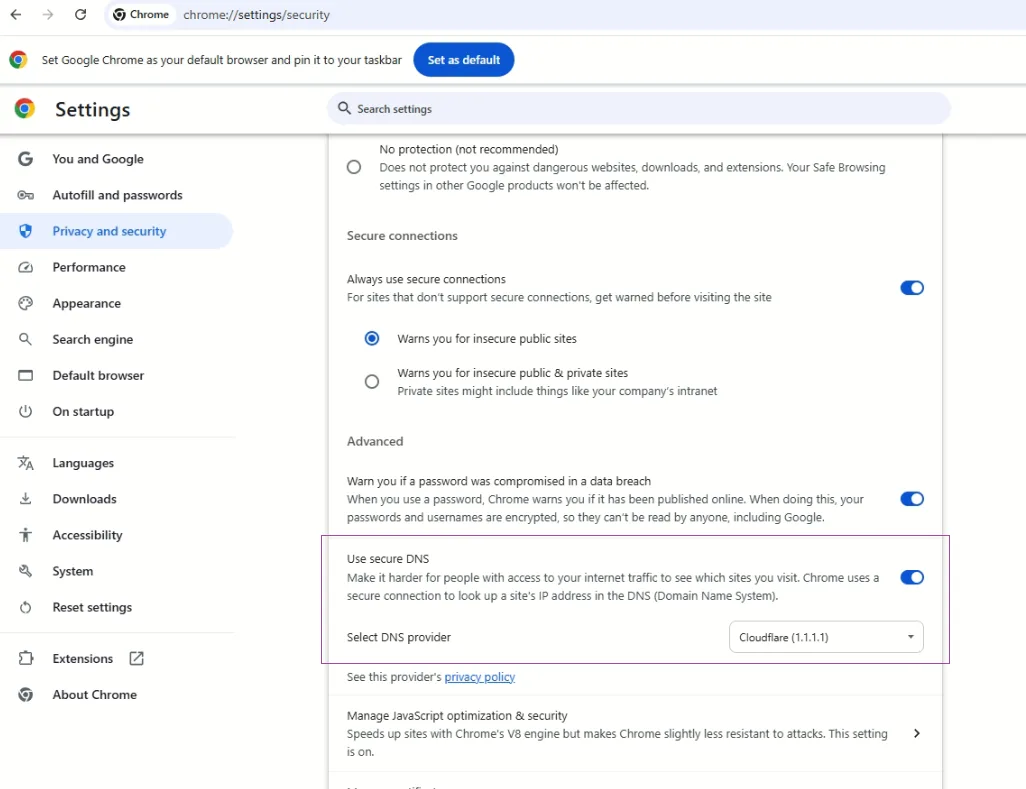 Secure DNS in Chrome
You now have two options:
- With your current service provider - Chrome uses whatever DNS your operating system is configured for, but upgrades it to DoH if the provider supports it. This is the lazy option and works fine for most home networks.
- With - Pick from a dropdown of preset providers (Cloudflare, Google, OpenDNS, Quad9, Clean Browsing) or paste a custom DoH URL.
For the privacy benefit you want, choose With and pick Cloudflare or your preferred provider. Setting it to "With your current service provider" is better than nothing, but it relies on your ISP supporting DoH, which many still do not in 2026.
A faster way to jump straight there: paste chrome://settings/security into the address bar.
The same steps work in Edge, Brave, Opera, and Vivaldi, since they all use the Chromium engine. The menu wording is slightly different (Edge calls it "Privacy, search and services" while Brave uses "Privacy and Security") but the secure DNS toggle is in the same place.
How to enable DoH in Firefox
Firefox has the best DoH implementation of any browser. It can run in "Max Protection" mode that refuses to fall back to plain text DNS even if the encrypted lookup fails, which is what you want.
- Open Firefox and click the menu button (three horizontal lines) in the top right
- Click Settings
- Click Privacy & Security in the left sidebar
- Scroll all the way down to the DNS over HTTPS section
- You have three protection levels:
- Default Protection - Firefox uses DoH if your network supports it
- Increased Protection - Always use DoH, fall back to system DNS only if the DoH resolver fails
- Max Protection - Always use DoH, never fall back. If the DoH resolver fails, websites do not load
- Pick Increased Protection for normal use or Max Protection if you really care
- Under Choose Provider, select Cloudflare, NextDNS, or paste a custom DoH URL
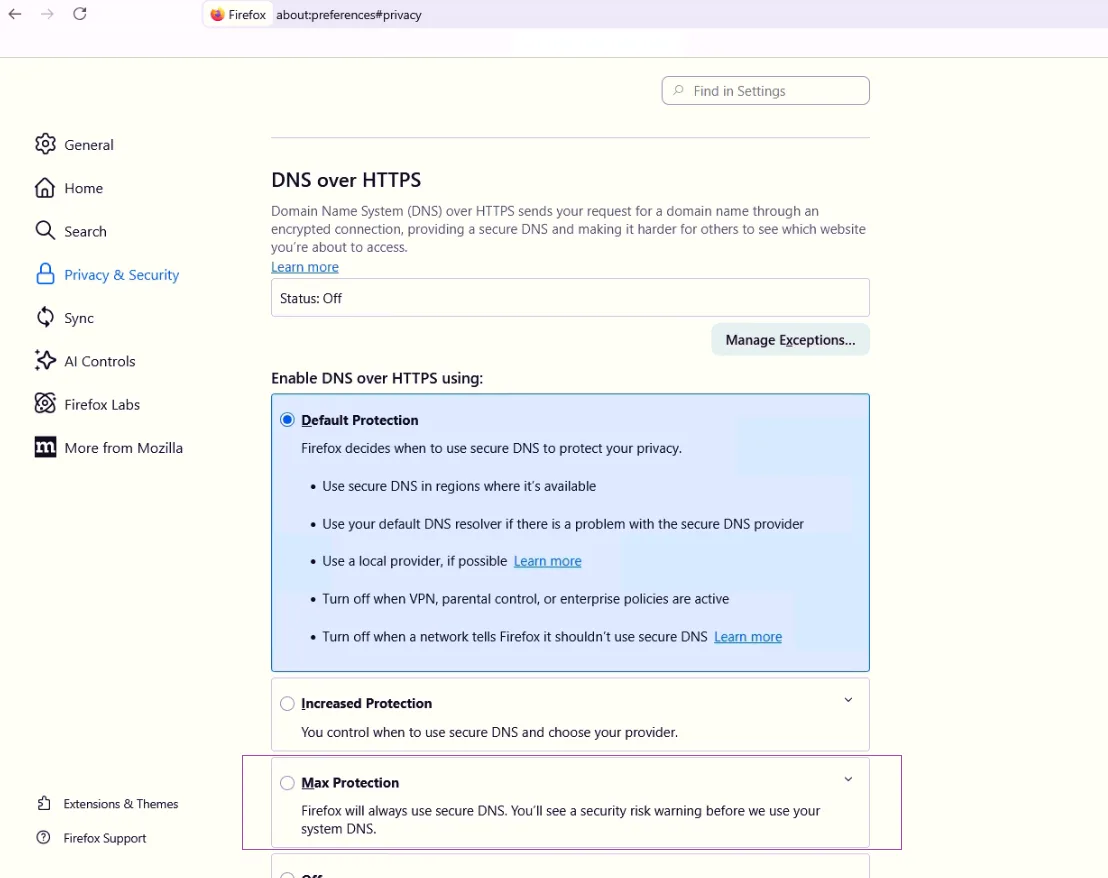 Secure DNS in Firefox
Max Protection is the right setting for paranoid users but it occasionally breaks captive portals (hotel Wi-Fi, airport Wi-Fi) that need to redirect you to their login page. If you travel a lot, Increased Protection is the better balance.
Quick shortcut: paste about:preferences#privacy into the address bar and scroll to the bottom.
How to enable DoH in Safari (on Mac and iPhone)
Safari does not have its own DoH setting. It uses the system level DNS configuration, which means you need to enable DoH at the macOS or iOS level. The good news is this enables encrypted DNS for every app on your device, not just Safari.
macOS (system wide)
macOS does not have a built-in UI for adding DoH providers. You have to install a configuration profile, which is a small file that tells the system to use a specific encrypted DNS resolver.
Here is the easy path:
- Visit the official page for the DNS provider you want to use:
- Cloudflare: download from
https://one.one.one.one/help/ - NextDNS: generate your profile at
https://my.nextdns.io - Mullvad:
https://mullvad.net/en/help/dns-over-https-and-dns-over-tls/
- Cloudflare: download from
- The provider supplies a
.mobileconfigfile - Double click the file to open it
- Open System Settings
- Click Privacy & Security in the sidebar
- Scroll down to Profiles
- Click the new profile and choose Install
- Enter your admin password to confirm
Once installed, every app on your Mac (Safari, Chrome, Firefox, Mail, system updates) will use the encrypted DNS resolver from that profile. You can verify it worked by visiting https://1.1.1.1/help and looking for "Using DNS over HTTPS (DoH): Yes".
To remove later: System Settings → Privacy & Security → Profiles → select the profile → minus button.
iPhone and iPad (iOS 14 and later)
Same approach as macOS, using a configuration profile.
- On your iPhone, open Safari and visit the provider's page (Cloudflare, NextDNS, Mullvad, Quad9 all offer profiles)
- Tap the download link for the iOS profile
- iOS prompts you to allow the download. Tap Allow
- Open the Settings app
- Near the top, tap Profile Downloaded
- Tap Install in the top right, enter your passcode if asked
- Tap Install again to confirm
The profile is now active. Every app on your iPhone (Safari, Chrome, social apps, email) sends DNS queries through the encrypted resolver. If everything was installed succesfully, you can verify it next.
To check it worked: open Safari, go to https://1.1.1.1/help, and confirm "Using DNS over HTTPS (DoH)" shows Yes.
To remove: Settings → General → VPN & Device Management → tap the profile → Remove Profile.
How to enable DoH in Windows 11 (system wide)
Windows 11 has built-in DoH support that applies to every app on the system. Worth doing if you want encrypted DNS everywhere, not just in the browser.
- Press Windows + I to open Settings
- Click Network & Internet
- Click on your current connection (Wi-Fi or Ethernet)
- Click the name of your network → Properties (or click Hardware properties)
- Find DNS server assignment and click Edit
- Change the dropdown from Automatic (DHCP) to Manual
- Toggle IPv4 ON
- Enter the DNS server IP:
- Cloudflare:
1.1.1.1(preferred) and1.0.0.1(alternate) - Google:
8.8.8.8and8.8.4.4 - Quad9:
9.9.9.9and149.112.112.112
- Cloudflare:
- Under DNS over HTTPS, change the dropdown to On (automatic template) or On (manual template)
- Click Save
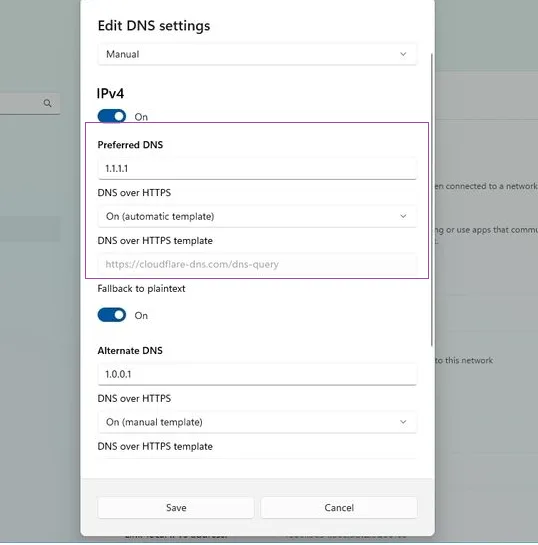 DoH in Windows 11
Windows 11 automatically recognises Cloudflare, Google, and Quad9 IPs and applies the correct DoH template. If you use a different provider, choose "manual template" and paste the DoH URL.
If you also use IPv6, repeat the same steps for IPv6 with the provider's IPv6 addresses (Cloudflare's are 2606:4700:4700::1111 and 2606:4700:4700::1001).
How to enable DoH in Android
Android 9 and later support encrypted DNS through a feature called Private DNS. Technically this is DoT (DNS over TLS) rather than DoH, but it achieves the same goal: encrypted DNS for every app on the phone.
- Open Settings
- Tap Network & internet (or Connections on Samsung devices)
- Tap Private DNS
- Select Private DNS provider hostname
- Enter the hostname for your chosen provider:
- Cloudflare:
one.one.one.one - Google:
dns.google - Quad9:
dns.quad9.net - Mullvad:
dns.mullvad.net - NextDNS:
abc123.dns.nextdns.io(your unique ID)
- Cloudflare:
- Tap Save
That is it. Every app on the phone now uses encrypted DNS. The setting persists across Wi-Fi and mobile data.
Note that this is DoT (not DoH), but for end users the practical effect is identical. Your DNS queries are encrypted, your ISP cannot read them, and the resolver hostname is verified by certificate.
How to verify DoH is actually working
Setting it up is not enough. Half the time something blocks it silently (corporate firewall, ISP middlebox, browser extension) and you think you have DoH when you do not.
Two quick tests:
Cloudflare's check page: visit https://1.1.1.1/help and look for the line "Using DNS over HTTPS (DoH)". It should say Yes. If it says No, your browser or system is sending queries in the clear.
Run a DNS leak test: this checks not just whether DoH is on, but which resolver actually answered your queries, since some networks rewrite DNS without telling you. Run a quick dns leak test to confirm the DoH resolver you configured is actually the one responding to your queries. You should see only your chosen provider (Cloudflare, NextDNS, whatever) in the results. If you see your ISP's DNS servers, something is bypassing DoH.
DNS over HTTPS test over Chrome browser & DNS LEAK TEST.
 Chrome Cloudflare DoH
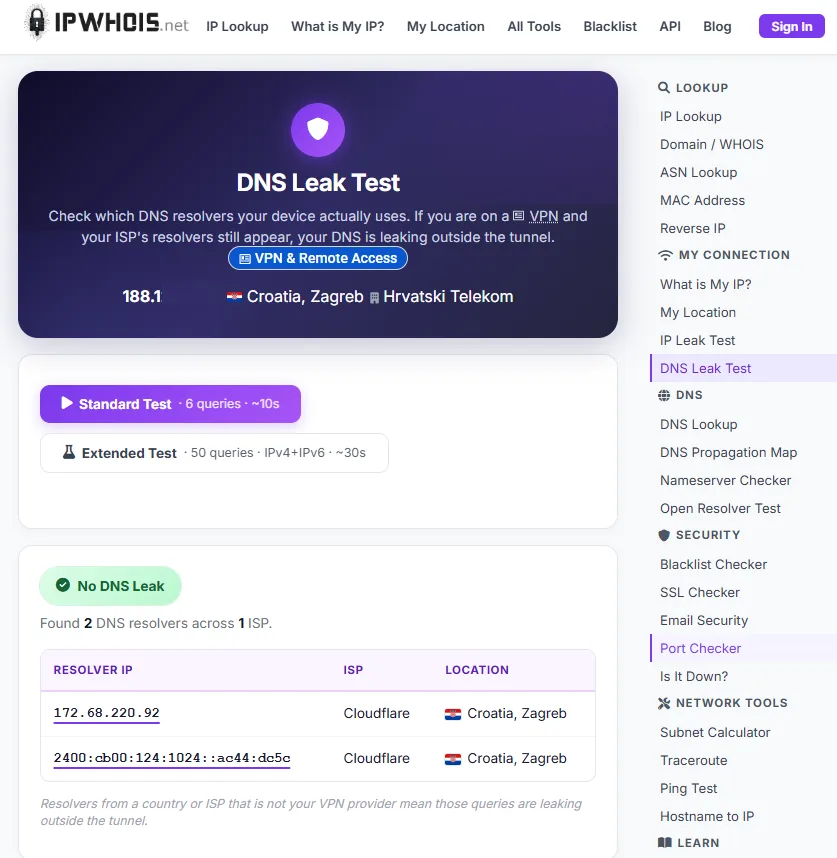 Claudflare test in Chrome
Then we try in Chrome browser;
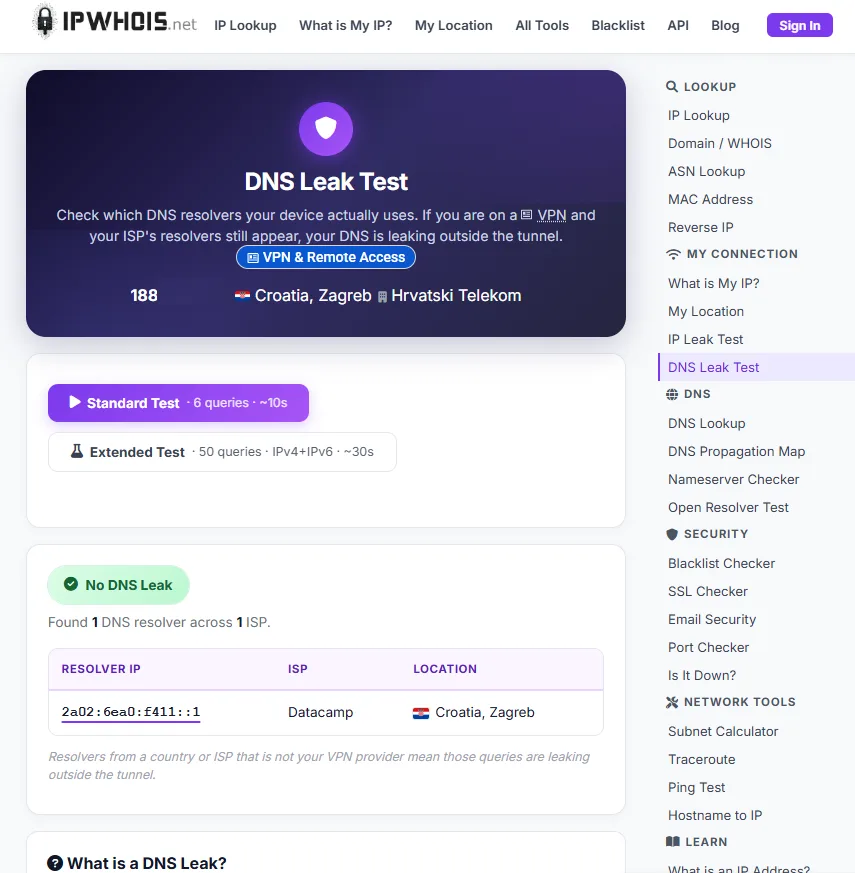 DNS4EU test in Chrome
For a complete picture of what your network shows to the outside world, an ip lookup on yourself reveals your IP, ISP, and whether your traffic looks like it is going through a VPN. Combined with a DNS leak test, those two tools tell you exactly what is and is not encrypted in your current setup.
What DoH does not do
This is the part most articles skip, and it is where most users get confused. DoH solves one specific problem. It does not solve all the others.
DoH encrypts your DNS queries so observers on the network cannot see which domains you are visiting. That is genuinely useful, especially on public Wi-Fi, hotel networks, and any network you do not fully trust.
DoH does not hide your IP address from the websites you visit. Your destination sites still see your real IP unless you also use a VPN or Tor.
DoH does not encrypt the rest of your traffic. Once your browser knows the IP address of example.com, it still connects to that IP normally. The connection content is protected by HTTPS, but the IP of the destination is visible to anyone watching the network. Modern Server Name Indication (SNI) means even with HTTPS, observers can often see which domain you connected to. Encrypted Client Hello (ECH), if both your browser and the destination support it, closes that gap, but adoption is still patchy in 2026.
DoH does not protect against malicious DNS providers. If you pick a sketchy DoH resolver, they can see all your queries, log them, sell them, or redirect you to phishing sites. The whole point is to move your trust from your ISP to a specific resolver, so pick one with a good privacy track record.
DoH does not replace a VPN. A VPN hides your IP from destination sites, encrypts all your traffic (not just DNS), and gives you geographic flexibility. DoH does one piece of that. Use both for layered defense, do not use DoH as a VPN substitute.
DoH can break parental controls and ad blockers that work by intercepting DNS at the network level (Pi-hole, OpenDNS family filters, school content filters). If you use one of those, configure your DoH resolver to use the same filtering provider (NextDNS, Cloudflare for Families, Quad9 with malware blocking) so you do not lose those protections.
Common problems and fixes
Captive portals stop working. Hotel Wi-Fi, airport Wi-Fi, and conference networks often require you to log in through a captive portal. DoH can break that because the portal redirect happens via DNS manipulation. Workaround: switch to "Increased Protection" instead of "Max Protection" in Firefox, or temporarily disable DoH for the captive login, then re-enable it.
Some internal sites do not load. Corporate or home networks sometimes use internal DNS that only the local resolver knows about. If you switch to public DoH, those internal hostnames fail. Solution: use a DoH provider that supports split horizon (NextDNS allows custom rules), or keep DoH off for the specific work network.
My ISP keeps appearing in DNS leak tests. This usually means another app or service is bypassing your DoH config. Common culprits are corporate VPN clients, parental control software, antivirus suites with network protection, or older system services. Identify which app is intercepting DNS and either disable it or configure it for DoH.
Performance feels slower. Most users see no difference, but if you do, try a different provider. Cloudflare and Google are usually the fastest. Some smaller providers have higher latency, especially outside Europe and North America.
My old IoT device cannot resolve domains. Smart TVs, older routers, and some IoT devices ignore the system DoH setting and use hardcoded DNS servers. If you really want everything on your network to use DoH, run a local DoH proxy on your router (most modern OpenWrt and pfSense builds support this).
What about DNS over TLS (DoT)?
DoT is the sibling protocol to DoH. Functionally they do the same thing: encrypt DNS queries. The difference is in transport. DoH wraps DNS in HTTPS (port 443, looks like normal web traffic). DoT uses its own seperate port (853, easily blocked by firewalls).
For consumer use, the practical advice is:
- On your phone, use whatever the OS calls it. Android calls it Private DNS, uses DoT under the hood, and it works fine.
- On your computer and in browsers, use DoH. It blends in with regular HTTPS, harder to block on restrictive networks.
- For technical users running their own resolvers, DoT is easier to set up at the router level.
You do not need to pick one and stick with it. Many networks run both in parallel.
Wrap up
DoH is one of those settings that takes two minutes to enable and gives you real, measurable privacy improvement for the rest of the life of the device. It is not a magic privacy bullet, but it closes a leak that has been in plain sight since the internet was invented.
Pick a provider you trust, enable it in your browser and operating system, verify it actually worked with a DNS leak test, and forget about it. Your ISP no longer gets to see every domain you visit. That is a meaningful improvement for ten minutes of work.
If you also care about hiding your IP from destination sites, combine DoH with a reputable VPN. If you also want to know exactly what your current network setup reveals about you, an IP lookup on yourself shows what is visible. Most people are surprised by how much is exposed even with HTTPS everywhere.
The internet was not designed for privacy by default. You have to opt in, one setting at a time. DoH is one of the easier ones to start with.



Comments 0