

Most people think a VPN makes them anonymous online. I used to think that too. So I ran an experiment to find out exactly what changes when you connect, and what stays the same.
I use a VPN myself, every day. And even with the VPN running, the websites I visit can still see my real browser, my system language, my screen resolution, and a dozen other signals that point straight back to me. The IP address gets hidden. Almost nothing else does.
The short version: my VPN successfully hid my IP address and made me look like I was browsing from North Macedonia. It also did absolutely nothing to hide my operating system, browser version, screen resolution, system language, or the dozens of other signals that websites use to identify and track me. Worse, the destination site I tested correctly flagged me as "VPN detected" anyway.
Here is the full breakdown, with screenshots, of what a VPN actually protects you from in 2026 and what it does not.
The setup
I connected to a popular commercial VPN on my Windows laptop running Chrome 147. I picked a server in North Macedonia (a country I have never been to) so any reveal of my real location would be obvious. Then I went to ipwhois.net and looked at exactly what data was visible to a website I just connected to.
I want to flag the obvious here. I run ipwhois.net, so I had access to both the public IP details and the internal admin view that shows what fingerprint data the site captures from incoming requests. That second view is where things got interesting.
What the VPN successfully hid
The first screenshot shows the VPN client confirming the connection. New IP address 217.9.244.86, server in Skopje, North Macedonia, with 40 seconds of connection time.
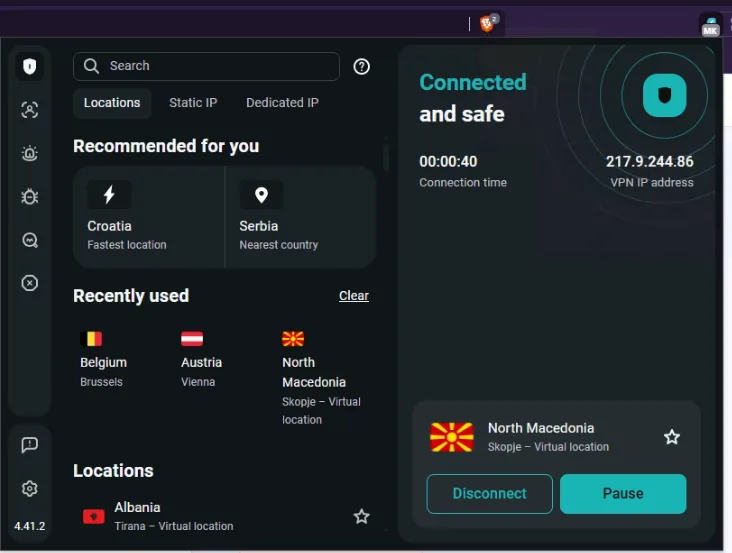
So far so good. When I loaded ipwhois.net, this is what the site saw:
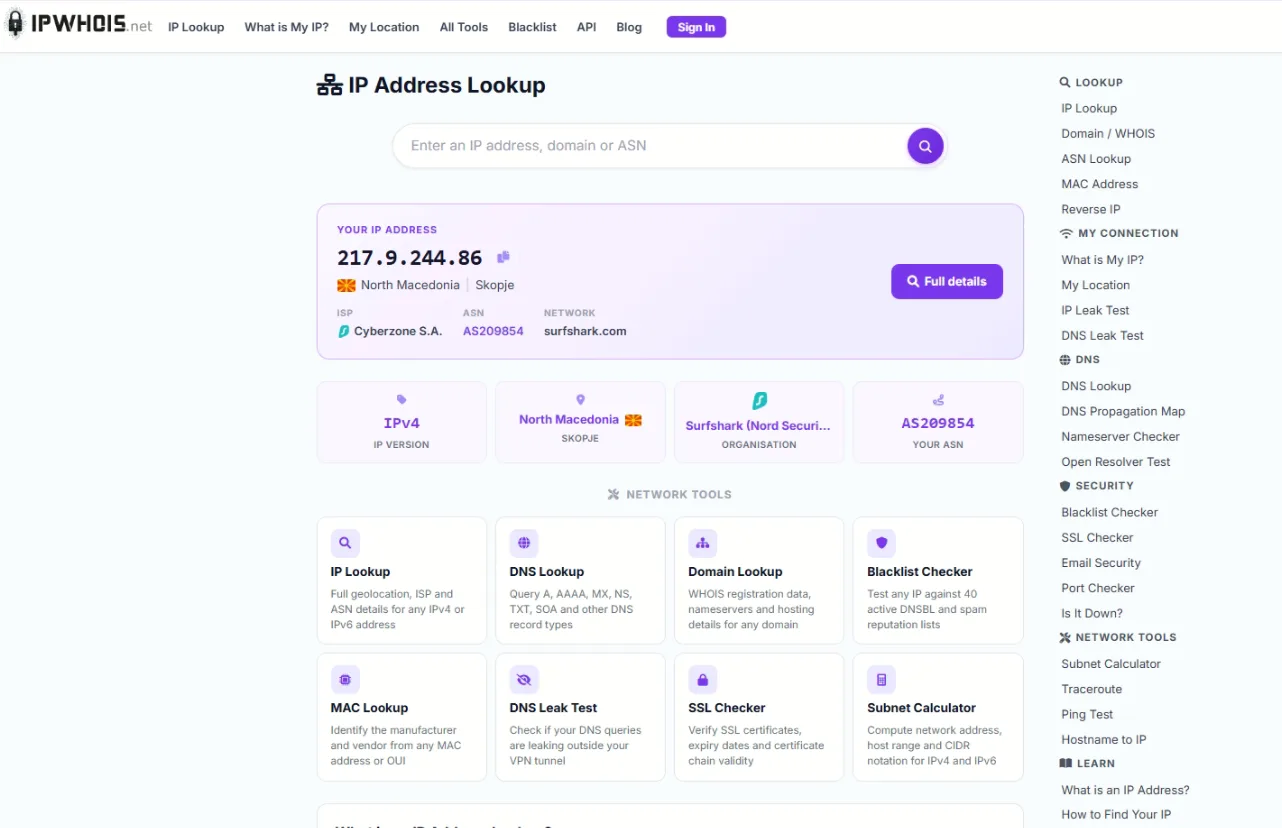
Not bad. The VPN did its job at the network layer. Specifically:
- IP address: changed from my real one to
217.9.244.86 - ISP: shows as Cyberzone S.A. (the upstream provider in Macedonia)
- ASN: AS209854
- Country: North Macedonia
- City: Skopje
- Coordinates: 41.99646, 21.43141
Anyone looking at just the IP would conclude I am sitting in Skopje right now. Mission accomplished, right?
Not really. Look at the next screenshot more carefully.
What the VPN didn't hide (the part that matters)
The detailed view of my IP address showed something most VPN users never check. Down at the bottom, in the security section:
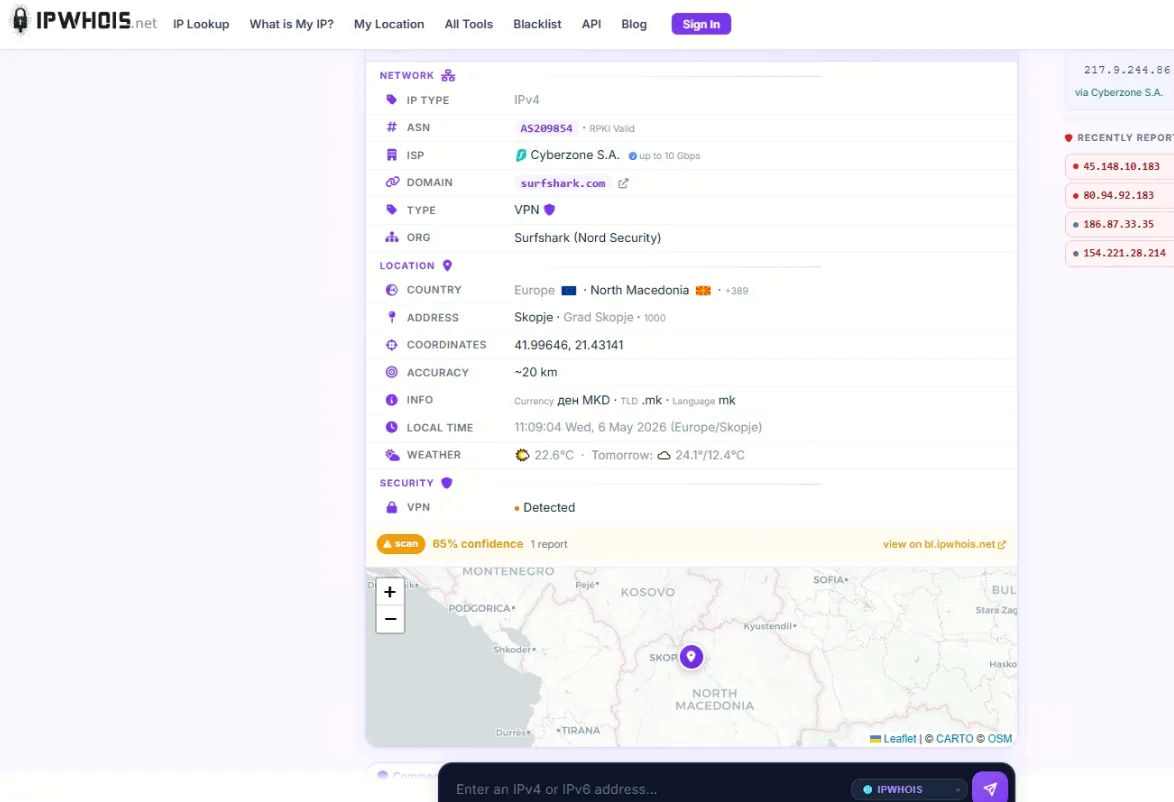
The site detected that I was using a VPN, and it did this just by analyzing the IP address against known VPN ranges. The whole point of the VPN was to blend in as a normal user, but I was flagged as VPN traffic before any deeper inspection even started.
That is just the IP layer. Things got worse when I checked the admin view of recent visitors, which shows the metadata that every website silently captures from your browser without you doing anything special.
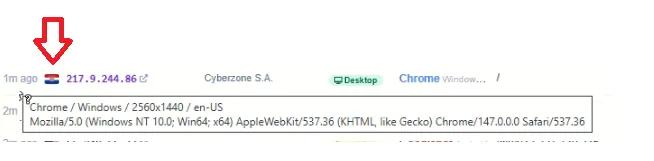
Look at what that captures, all from a single page load with my VPN connected:
- Operating system: Windows NT 10.0, 64-bit
- Browser: Chrome 147.0.0.0
- Rendering engine: Blink (AppleWebKit/537.36)
- Screen resolution: 2560x1440
- System language: en-US
- Device type: Desktop
- Country flag shown: HR (Croatia)
The screen resolution and the OS are exactly what they would be without the VPN. The browser version is exact down to the build number. The language preference is unchanged. And somehow, despite the VPN routing me through Macedonia, the system still tagged me with a Croatian flag because some other signal (browser language preferences, accept-language headers, time zone) told it where I really was.
This is the gap nobody talks about. The VPN changed five fields and left twenty unchanged.
VPN: what it hides vs what it doesn't
Here is the side by side reality check. Five fields a VPN reliably changes for you, and the much longer list of things it leaves completely exposed.
| ✅ What a VPN hides | ❌ What a VPN does NOT hide |
|---|---|
| Real IP address | Operating system and version |
| ISP / network owner | Browser name and exact version |
| ASN | Browser rendering engine |
| Country and city (per IP) | Screen resolution and color depth |
| Approximate geographic coordinates | System language and locale |
| Time zone | |
| Installed fonts | |
| GPU model (via WebGL) | |
| Canvas rendering fingerprint | |
| AudioContext fingerprint | |
| CPU cores and device memory | |
| Touch capabilities | |
| Battery status (older browsers) | |
| TLS handshake signature | |
| Accept-Language headers | |
| Plugins and MIME types |
The left column is the network layer. The right column is everything that lives above it. A VPN works on the left and is structurally blind to the right.
Why this happens (the layer problem)
A VPN works at the network layer. It sits between your computer and the internet, takes everything your computer wants to send, wraps it in encrypted packets, and sends it to a VPN server somewhere else. That server unwraps the packets and forwards them on. From the destination's perspective, the traffic appears to come from the VPN server, not your home.
That is everything a VPN does. It changes what IP address shows up in the destination's logs.
But the actual website you visit does not see only the IP address. Modern web pages run JavaScript that asks your browser dozens of questions, and your browser answers honestly. The JavaScript is running on your machine, after the VPN tunnel has already been built. The VPN cannot intercept what your browser is telling the website, because the browser is on your side of the tunnel.
So the website asks "what is your screen resolution" and Chrome answers 2560x1440. The website asks "what fonts are installed" and Chrome enumerates them. The website asks "render this invisible canvas and tell me the pixel data" and Chrome obediently does so, producing a hash that is unique to your specific GPU, driver version, and OS rendering settings.
None of this goes through the VPN. The VPN never sees these questions. It just sits at the network layer routing packets, completely unaware that the encrypted traffic above it contains a detailed inventory of your machine.
The leak categories that bypass VPN entirely
Beyond browser fingerprinting (which is a feature of how the web works, not a bug), there are also active leaks that defeat the VPN at its own job. Three of them are worth knowing about.
WebRTC leaks. WebRTC is a browser feature for video calls and peer-to-peer connections. To make those connections work, it needs to know your real IP address, and it queries your network interfaces directly using a protocol called STUN. This bypasses the VPN tunnel entirely. A website running a few lines of JavaScript can trigger a WebRTC request and see your true ISP IP, even when your VPN is connected. Recent test data shows WebRTC accounts for around 70% of all VPN leaks detected. You can run an ip leak test to see if your VPN is exposing your real address through this channel.
DNS leaks. When you type a domain name, your computer needs to translate it to an IP address. That request should go through the VPN. Often it doesn't. Windows in particular has a feature called Smart Multi-Homed Name Resolution that sends DNS queries down every available network interface for speed, including the one not protected by the VPN. The result is that your ISP can see every website you visit even though your traffic is otherwise encrypted. A dns leak test will show you whether your DNS queries are actually going through the VPN tunnel or quietly bypassing it.
IPv6 leaks. Most VPNs only tunnel IPv4 traffic. If your ISP gives you an IPv6 address (and many do in 2026), connections that prefer IPv6 will go directly to the destination, completely outside the VPN. Your real IPv6 address gets exposed even though your IPv4 is hidden. The fix is either disabling IPv6 in your network settings or using a VPN that explicitly handles both stacks.
In my own test, I was lucky enough that none of these leaks were occured. The VPN handled DNS routing properly, blocked WebRTC by default in the browser extension, and disabled IPv6 routing while connected. Not every VPN does this, and not every user has the same configuration. The only way to know is to test it yourself.
Browser fingerprinting: the real game
Even with all leaks plugged, you still have the fingerprinting problem. Run your browser through EFF's Cover Your Tracks tool while connected to a VPN and you will see how unique your specific configuration is. Most users get a result like "your browser is unique among the X browsers we have tested in the last 45 days". The number is usually in the tens of thousands, sometimes higher.
That uniqueness comes from combining many small signals. Each one is low-information by itself, but the combination is identifying. Here is a partial list of what trackers actually look at:
- HTTP headers like User-Agent, Accept-Language, Accept-Encoding
- Screen properties like resolution, color depth, pixel density, available screen size
- Hardware indicators like CPU cores, device memory, touch support
- Canvas rendering where the browser draws an invisible image and the resulting pixel hash is unique per GPU and driver
- WebGL fingerprint which exposes your graphics card model and driver version
- AudioContext fingerprint where audio processing produces slightly different output on different hardware
- Font enumeration revealing which fonts are installed (which leaks OS, locale, and software preferences)
- Time zone and clock skew
- Battery API status (on browsers that still expose it)
- Speech synthesis voices which differ by OS version
- TLS handshake fingerprint (JA3/JA4) which is the same regardless of VPN
Trackers stitch all of these together. Two visits to two different websites from the same browser can be linked, even with no cookies, no login, and a different VPN exit each time. The fingerprint is the same.
"Incognito mode" doesn't help
A common misconception is that private or incognito browsing solves this. It doesn't. Private mode prevents your browser from saving history and cookies on your machine, which is useful if you share a computer. It does succesfully nothing to change the fingerprint your browser presents to websites.
I tested this. Opened a fresh incognito window with the VPN still connected, and loaded a fingerprinting test. Same canvas hash. Same WebGL signature. Same fonts. Same audio context. The browser did not magically randomize its hardware identity just because the window had a darker theme.
The only thing that meaningfully changed in incognito was that I had no logged-in sessions, so cookie-based tracking from logged-in services was not available. Everything else continued to identify the same machine.
What actually works (the layered approach)
Here is the honest answer for anyone who actually wants to be hard to track. There is no single setting or product that does it. Real privacy in 2026 is a stack of overlapping defenses:
Network layer: a reputable VPN with a kill switch, DNS leak protection, and IPv6 handling. Test it regularly with leak tools, because protections silently fail when configurations change. Most major commercial VPNs handle this layer reasonably well if configured correctly.
Browser layer: this is where most people drop the ball. Brave with strict shield settings, Firefox with privacy.resistFingerprinting enabled, or Mullvad Browser (which is essentially Tor Browser without the Tor network) all standardize fingerprints to some degree. Brave actively randomizes canvas and audio fingerprints. Tor Browser is the gold standard but the latency is brutal for normal use.
Disable WebRTC if you don't need video calls. In Firefox, set media.peerconnection.enabled to false. In Chrome, install uBlock Origin and turn on the WebRTC leak prevention setting.
Use clean defaults. Common screen resolutions like 1920x1080. System language matching the country you are pretending to be in. Time zone matching as well. Every personal customization makes you more unique.
Skip browser extensions unless they are genuinely necessary. Each extension you install adds entropy to your fingerprint. Five privacy extensions running together can make you more identifiable than no extensions at all, because the specific combination is rare.
Tor for things that matter. If your threat model includes anyone who could subpoena VPN logs, only Tor provides actual unlinkability. Everything else is privacy theater above a certain adversary level.
The hard truth: 100% anonymity is impossible
Even with Tor Browser on Tails OS routed through Tor, fingerprinting research has shown that determined trackers can sometimes still link sessions through behavioral patterns like typing rhythm, mouse movement, and scrolling cadence. Pure anonymity online is not achievable for an average user with average hardware.
What is achievable is making yourself expensive enough to track that nobody bothers unless you are personally interesting. For most people that is enough. A standard commercial VPN setup plus Brave with default fingerprint protection puts you in roughly the top 5% of privacy-conscious users on the open web. That is not perfect, but it is dramatically better than the 95% of people who run nothing.
The goal is not to disappear. The goal is to be more annoying than the next available target.
What you can do right now
If this article has made you wonder whether your own setup is leaking, three things take less than five minutes:
First, run a VPN leak test. Connect your VPN, then check what address actually shows up on a lookup tool. If you see your real IP anywhere in the results, the VPN is broken or misconfigured.
Second, run a DNS check to see whether your queries are reaching your VPN's servers or quietly going to your ISP. Many VPNs claim DNS leak protection but fail when split tunneling is on or after sleep/wake cycles.
Third, run EFF's Cover Your Tracks at coveryourtracks.eff.org. It will tell you how unique your fingerprint is and which signals are giving you away. Then make changes (different browser, disable WebRTC, fewer extensions) and test again. The number should improve.
Wrap up
VPNs work. They do exactly what they promise: they hide your IP address and route your traffic through somewhere else. That alone is enormously valuable for things like avoiding ISP tracking, accessing geo-restricted content, and not getting flagged by streaming services for being on a residential IP.
What VPNs do not do is make you anonymous. The layer they operate at is the network layer, and most modern tracking happens at the application and browser layers, where the VPN has no visibility. Your operating system, browser, hardware, fonts, and dozens of other signals continue speaking to every website you visit, and thier combination is uniquely identifying.
If you only take one thing from this article, take this: turning on a VPN is the start of a privacy strategy, not the end of it. Anyone telling you otherwise is selling something.



Comments 0