
Every email you receive carries a hidden record of exactly where it came from, what servers it passed through on the way, and whether the sender actually is who they claim to be. Most people never look. Most email clients hide the details behind a menu most users have never clicked. But once you know how to read an email header, you can answer questions like "did this really come from my bank" or "is this phishing trying to look like my coworker" in about thirty seconds.
Email headers are the metadata equivalent of an envelope's postmarks. They show you the journey of the message, the IP address of the original sender, the mail servers involved, and whether the authentication checks (SPF, DKIM, DMARC) passed or failed. For phishing analysis, fraud investigation, journalism, IT troubleshooting, or just plain curiosity, this is the single most useful skill nobody teaches you about email.
Here is exactly how to view email headers in every major mail client, how to read what you find, how to trace the real sending IP, and what the IP intelligence actually reveals about who sent you that message.
Why email headers matter (and why you've never looked at them)
Every email message has two parts. The visible part is what you see in your inbox: sender name, subject line, the message body. The hidden part is the header block, a series of structured lines that record how the message got to you. Mail servers write these lines as the message passes through. By the time the email lands in your inbox, the header is essentially the full chain of custody.
When you open an email and it looks like it came from "Amazon Customer Service," the visible "From" field is just text. The sender can put anything they want there. The actual sending server, the network it came from, and the authentication checks that did or did not pass are all in the header. A spoofed email looks identical to a real one in the body, but the header tells you the truth.
The reason most people never look at headers is that mail clients hide them by default. The headers are technical, they include cryptographic artifacts, and the user experience would be terrible if every email came with a wall of Received: lines. But the option to view them exists in every major client. You just have to know where to click.
How to actually view the full email header
The full header is sometimes called "raw source," "internet headers," "original message," or "message source," depending on your mail client. Same thing. Here is exactly where to find it in each major client.
Gmail (web)
- Open the email you want to inspect
- Click the three-dot menu (kebab menu) at the top right of the email, not the one at the top of the page
- Select Show original
- A new tab opens with the full header at the top and the raw message body below
You can copy the full text from this page. Gmail also offers a "Download Original" button that saves the entire raw message as a .eml file.
Outlook (desktop, Windows)
- Double-click the email to open it in its own window
- Click File in the top menu
- Select Properties
- The full header appears in the Internet headers field at the bottom of the Properties dialog
This box is small and the text is annoying to copy. Select all the text inside it (Ctrl+A) and copy to a plain text editor for easier reading.
Outlook (web / outlook.com / Microsoft 365)
- Open the email
- Click the three-dot menu in the email toolbar
- Select View then View message source
Outlook on the web shows the full raw message in a new window.
Apple Mail (Mac)
- Open the email
- Go to View menu → Message → All Headers
- The header block now appears at the top of the email
- Alternatively, View → Message → Raw Source shows the full raw message including the body source
Apple Mail (iPhone / iPad)
Apple Mail on iOS does not have a native way to view full headers. You can either forward the email to yourself and view on desktop, or use a third-party app like Spark or Edison Mail that supports header viewing on mobile.
Yahoo Mail
- Open the email
- Click More (the three-dot menu) at the top of the email
- Select View raw message
Thunderbird
- Open the email
- Press Ctrl+U (Windows / Linux) or Cmd+U (Mac), or go to View → Message Source
ProtonMail
- Open the email
- Click the three-dot menu next to the reply button
- Select View headers for just the header block, or View message for the full raw message
The header you get from any of these is the same data. The format will be a long block of Header-Name: value lines, with the most recent server activity at the top and the original sender at the bottom. This is the universal format defined by RFC 5322, which has been the email standard for over 50 years.
The anatomy of an email header (every field explained)
A typical email header has dozens of fields. Most are uninteresting. A small set tells you almost everything you need to know about where the message really came from.
Here are the fields that actually matter, in order of usefulness for tracing a sender:
| Header field | What it tells you |
|---|---|
Received: |
Each server the email passed through, in reverse chronological order |
From: |
The claimed sender (often spoofed, cannot be trusted alone) |
Return-Path: |
Where bounce messages should go (harder to spoof) |
Reply-To: |
Where replies go if different from From |
Authentication-Results: |
SPF, DKIM, and DMARC verification outcomes |
Message-ID: |
Unique identifier, often reveals the sending platform |
X-Originating-IP: |
Sender's IP, if the mail server chose to record it |
X-Mailer: |
The email software that composed the message |
Received-SPF: |
Whether the sending IP is authorized for the claimed domain |
DKIM-Signature: |
Cryptographic signature proving the message came from the claimed domain |
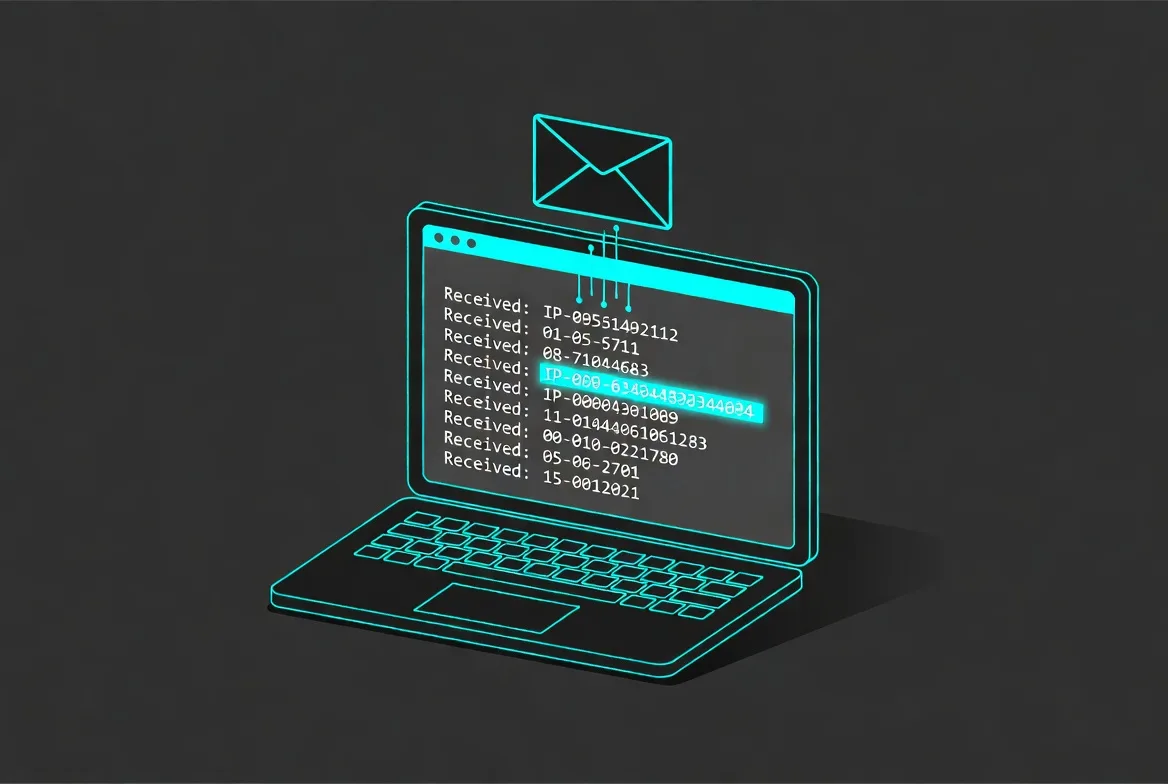
The Received: lines are the most valuable for tracing. They form a chain. Each mail server that touches the message prepends a new Received: line at the top. So the top Received: is the last server (probably your provider's incoming server), the bottom Received: is the first server (probably the sender's outgoing server). Reading from bottom to top traces the email's journey from origin to your inbox.
Following the trail: how to read the Received chain
A Received: line typically looks like this:
Received: from mail.example.com (mail.example.com [203.0.113.42])
    by mx.recipient.com with ESMTPS id abc123xyz
    for <[email protected]>;
    Tue, 02 Jun 2026 14:33:21 +0000 (UTC)
Breaking that down:
from mail.example.comis what the sending server claimed to call itself(mail.example.com [203.0.113.42])is what the receiving server independently verified, with the actual IP address in bracketsby mx.recipient.comis the receiving server (in this case, the next hop in the chain)with ESMTPSis the protocol (ESMTPS = Extended SMTP with TLS encryption)for <[email protected]>is the intended recipient- The date and time stamp is when this server received the message
The critical piece is the IP address in brackets. The sending server can claim any name it wants. The IP address is what the receiver actually saw connecting to it. That IP is verifiable, traceable, and the single most important piece of forensic data in the header.
To find the original sender's IP, read the Received: lines from bottom to top until you find the first one that includes a public IP address. Sometimes the first few Received: lines at the bottom are internal corporate mail servers with private IPs (like 10.0.0.5 or 192.168.x.x). Skip those. The first public IP in the chain, going from bottom up, is usually the actual sender.
Finding the real sending IP (and why some headers lie)
This is where it gets interesting. Email providers vary in how much truth they put in the header.
Gmail strips the sender's IP from outgoing messages for privacy reasons. If someone sends you an email from a Gmail account, the original Received: line near the bottom will show a Google server, not the sender's home or office IP. This applies to Workspace as well. You can sometimes find Gmail-internal IPs but they tell you nothing about who actually sent the message.
Outlook.com and Microsoft 365 also strip sender IPs in most configurations. The trail leads to a Microsoft server, not the sender.
ProtonMail strips sender IPs by design, as part of their privacy stance.
Most other providers preserve the sender's IP, especially smaller hosts, business mail servers, and anything self-hosted. If the email came from a company's own mail server, a Mailchimp campaign, an automated transactional email service (SendGrid, Mailgun, Postmark), or many regional ISPs, you will find the originating IP in the header.
The X-Originating-IP field, when present, is the most direct answer. Some mail servers explicitly record the original sender's IP in this header. When you see it, you can skip the Received: chain analysis.
For phishing emails specifically, the sender often uses compromised servers, hosting providers, or VPS infrastructure rather than personal connections. These leave very readable trails. A "this email is from your bank" message that originated from a hosting provider in a country your bank does not operate in is a strong signal.
Look out for a few patterns that indicate the header has been manipulated:
Received:lines that do not chain logically. Each line should reference servers that connect to each other. If there is a jump in the chain (one server, then a completely unrelated next server, then another unrelated one), the header may have been forged.- Timestamps that go in the wrong direction. Each
Received:line should have a timestamp earlier than or equal to the one above it. If timestamps jump forward as you read down the chain, something is wrong. - Forged-looking server names. A
Received:line that saysfrom microsoft-secure-server.com(something that does not exist) but resolves to a random IP suggests forgery. - Mismatch between domain in
From:and any signed domain inDKIM-Signature:. If the email claims to be frombank.combut the DKIM signature is forrandom-marketing-domain.com, it's not from the bank.
What the IP reveals (location, ISP, ASN, abuse history)
Once you have the sender's IP, the header has done its job. The IP is the starting point for the actually interesting work.
Running the IP through an ip lookup reveals:
- Country and city of the sending server
- ISP that owns the IP block
- Connection type (residential, business, datacenter, hosting, mobile)
- Whether the IP is associated with a VPN, proxy, or Tor exit node
- Reverse DNS (the hostname that the IP resolves back to)
For phishing forensics, the most diagnostic detail is the connection type. Legitimate corporate mail almost never originates from a residential connection. A "from your bank" email that traces back to a residential IP in a random country is a giant red flag. A "from your boss" email originating from a hosting provider in Lithuania when your boss is in New York is similarly suspicious.
The ISP tells you who owns the network the message came from. For business mail, this should match the company's known infrastructure. For consumer mail, it should be a known ISP. Anything else (an obscure bulletproof hosting provider, a known abuse-friendly network) is worth investigating further.
For deeper network context, an asn lookup on the IP returns the Autonomous System Number, which identifies the network operator. Major ISPs, cloud providers, and hosting companies each have their own ASN. Knowing the ASN tells you who is ultimately responsible for the IP space, which matters for abuse reporting and pattern recognition. Spammers and phishing operations often cluster on specific ASNs that are tolerant of abuse complaints.
A useful enrichment is to check whether the IP appears on any known abuse blacklists. An email header analyzer that automatically parses the headers and runs the IP through reputation databases saves the manual lookups for repeated checks. For a quick one-off, just plugging the IP into a blacklist checker gives you a fast read on whether other people have flagged this sender.
Authentication results: SPF, DKIM, DMARC explained
Modern email includes three authentication mechanisms that try to verify the sender is who they claim to be. All three results usually appear in the Authentication-Results: header.
SPF (Sender Policy Framework) checks whether the IP that delivered the message is authorized to send mail for the claimed domain. The receiving server looks up a DNS record for the sender's domain that lists allowed IP ranges. If the actual sending IP matches the list, SPF passes. If not, SPF fails (or returns "soft fail" or "neutral" for less strict configurations).
You will see lines like:
Authentication-Results: mx.recipient.com;
    spf=pass (sender IP is 198.51.100.42) smtp.mailfrom=sender.com;
    dkim=pass header.d=sender.com;
    dmarc=pass action=none header.from=sender.com;
If SPF says pass, the message came from an IP the domain owner authorized. If it says fail, the message came from an IP the domain owner did not authorize, which is highly suspicious.
DKIM (DomainKeys Identified Mail) is a cryptographic signature. The sending server signs parts of the message with a private key. The receiving server checks the signature against a public key published in DNS by the sending domain. If the signature verifies, the message has not been altered in transit and genuinely came from a server with access to the sending domain's private key.
DKIM is harder to fake than SPF. If a message claiming to be from bank.com has a valid DKIM signature signed by bank.com, it really came from the bank's infrastructure. If the signature is missing or fails, treat the message with suspicion.
DMARC (Domain-based Message Authentication, Reporting, and Conformance) is the policy layer on top of SPF and DKIM. It tells the recipient what to do when SPF or DKIM fail. A strict DMARC policy means failed messages get rejected outright. A lenient policy means they get accepted with a warning.
For phishing analysis, the most important field is dmarc=pass or dmarc=fail. If a message claims to be from a major brand and shows dmarc=fail, somone is almost certainly trying to impersonate that brand. Legitimate brands maintain working DMARC.
Common red flags in phishing email headers
Once you read a few real and a few fake headers, the patterns become obvious. Here are the most reliable indicators of phishing.
Mismatch between From: domain and Return-Path: domain. A legitimate email from [email protected] will usually have a Return-Path: ending in bank.com or a closely related domain. Phishing emails often have a Return-Path: that points to a completely unrelated domain like [email protected].
SPF or DKIM failure on a claimed major brand. If the email claims to be from Microsoft, Google, Apple, or any large company, and SPF or DKIM fails, it is almost certainly fake. These companies maintain working authentication for their genuine mail.
Originating IP in a geography that does not match the sender. "From Amazon" but originating from an IP in a country where Amazon does not operate that service. "From your American bank" but originating from a European hosting provider.
X-Mailer field that does not match the claimed sender. A "from PayPal" message with X-Mailer: WebSitePulse or X-Mailer: PHPMailer 6.x is suspicious. Legitimate PayPal mail comes through Amazon SES or PayPal's own infrastructure.
Multiple Received: lines through residential or low-quality networks. Legitimate transactional email rarely passes through residential connections or known bulletproof hosts. A long chain of unfamiliar hops is a warning sign.
Reply-To: address different from From: address with no obvious reason. Sometimes legitimate (mailing lists, support escalation), often phishing. A "from your boss" message with Reply-To: pointing to a different domain is almost always an attempt to capture replies somewhere the attacker controls.
Subject lines that include common phishing keywords combined with authentication failures. "Urgent action required" + SPF fail is a classic combination.
What to do when you've identified a phishing sender
Knowing the IP and confirming the email is phishing leaves you with a few options.
Report the IP for abuse. Every public IP has an associated abuse contact, listed in the WHOIS record for that IP block. Sending the email headers and a brief explanation to the abuse contact is the proper procedure. Hosting providers will often act on these reports, especially for clearly malicious activity.
Submit the URL to phishing databases. Google Safe Browsing, Microsoft SmartScreen, and PhishTank all accept phishing reports. Submitting suspected phishing URLs helps protect other people who might receive the same message.
Report to the impersonated brand. Most major brands have a dedicated phishing report address. PayPal uses [email protected], Amazon uses [email protected], banks usually have their own contact. Forwarding the message to these addresses helps the brand track and shut down the campaign.
Block the sender at your mail server. If you run your own mail or have admin access at work, blocking the originating IP and the sending domain at the gateway prevents the same attacker from reaching anyone else in your organization.
Educate the apparent target. If the phishing message references someone specific (a colleague, family member, business contact), let them know thier identity is being impersonated. Sometimes phishing campaigns are part of a longer attack that includes legitimate targeting.
The limits: what headers cannot tell you
Email headers are powerful but not magic. There are several things they cannot reveal, and pretending otherwise leads to false confidence.
Headers do not show the sender's physical identity. They show the IP of the sending server, which may or may not be related to a specific person. Compromised servers, shared hosting, and VPN exit nodes can all serve as sending infrastructure without identifying the operator behind them.
Headers cannot trace through email providers that strip IPs. Gmail, Outlook.com, and ProtonMail all strip the sender's real IP from outgoing messages. If the email passed through one of these, you can only trace as far as the provider's outgoing server, not to the sender's actual connection.
Headers cannot prove the message body is what the sender wrote. Unless DKIM is present and valid, the body could have been altered in transit. DKIM gives you that assurance for messages from domains that sign their outgoing mail.
Headers cannot distinguish a compromised account from a malicious sender. If an attacker has stolen someone's email credentials and is sending from the genuine account, the headers will look completely legitimate. DKIM and SPF will pass. The IP may be the seperate legitimate account holder's IP. From a header analysis perspective, there is no signal of compromise. This is increasingly common with infostealer-stolen email accounts in 2026.
Mailing lists, mail forwarders, and aliases obscure the original sender. If someone sends to a mailing list and the list forwards to you, the headers show the mailing list server as the sender. The original sender's IP may or may not be preserved depending on how the list is configured.
Wrap up
Reading email headers is one of the most useful skills in personal cybersecurity that almost nobody bothers to learn. The information is right there in every email. The tools to view it are built into every mail client. The IP intelligence that gives the data meaning is freely available. The only barrier is knowing what to look for.
For phishing analysis specifically, a thirty-second header check tells you more than a hundred articles about "how to spot phishing." The data in the header either supports or contradicts the apparent sender, and unlike the visible "From" field, the header is much harder to forge convincingly.
The next suspicious email you receive, do not just delete it. Open the header. Find the originating IP. Check whether SPF, DKIM, and DMARC passed. Look up where the IP actually came from. The whole investigation takes under a minute, and you learn something every time. By the third or fourth time you do it, the patterns become automatic. By the tenth time, you can identify a phishing attempt before reading more than the first line of the message.
The data has always been there. Now you know how to read it.

Comments 0